 Piclash
Liquify a photo online, free
Push, twirl, pinch and bloat parts of a photo with an online liquify tool that works like Photoshop's. Freeze areas, use a pen's pressure, and undo any time. Free.
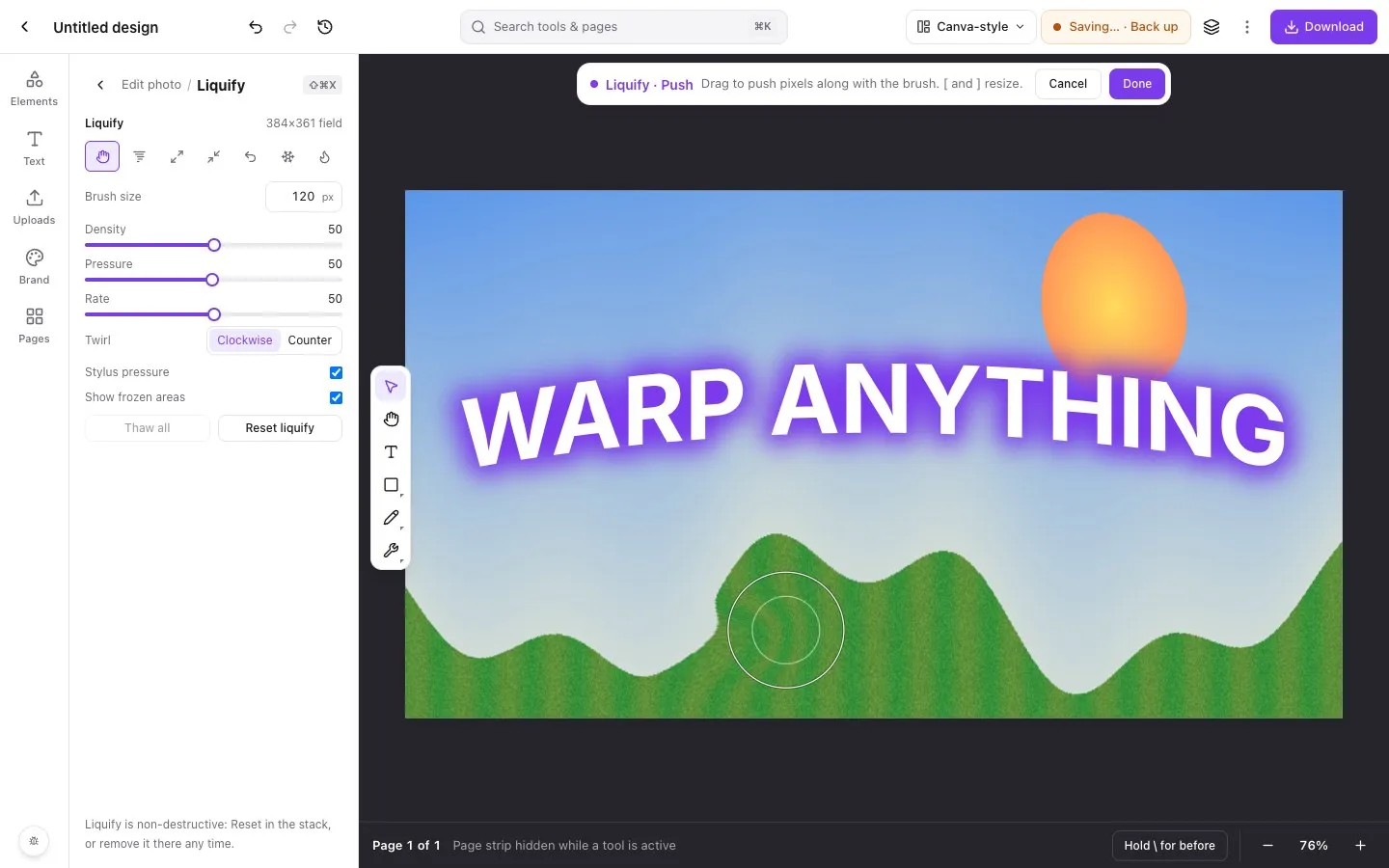
Step by step in Piclash
- 1Add your photoOpen Piclash and drop your photo onto the page, or add it from Uploads.
- 2Open LiquifySelect the photo and choose Liquify from Pro tools (Ctrl+K or Cmd+K, then type liquify), or press Shift+Cmd+X (Shift+Ctrl+X on Windows).
- 3Pick a brush and dragChoose Push, Twirl, Pinch or Bloat, set the brush size with [ and ], and drag over the photo. Density, Pressure and Rate control how strong each stroke is.
- 4Protect what shouldn't moveUse Freeze to paint over areas that must stay put, then liquify around them. Click Done when you're happy.
Liquify treats a photo like wet paint. Drag the brush and the pixels underneath move with it. It’s the tool behind subtle retouching and wild distortions alike, and until now it mostly lived in desktop apps.
The brushes
- Push moves pixels along with the brush, the workhorse for reshaping.
- Twirl spins pixels clockwise or counter-clockwise around the brush.
- Pinch pulls pixels towards the centre of the brush.
- Bloat pushes pixels outwards from the centre.
- Reconstruct paints the original back where you overdid it.
- Freeze and Thaw protect areas from being moved.
Brush size, density, pressure and rate work as they do in Photoshop, and so do the shortcuts. Press [ and ] to resize the brush.
Non-destructive by design
Piclash keeps your original photo and records the liquify as a distortion field. Crop, adjust or mask the photo afterwards and the liquify comes along. You can always reset it.
Questions
Is liquify permanent?
No. It's stored as an editable distortion on the photo. Reset it, or remove it from the photo's stack, at any time.
Does it work with a drawing tablet?
Yes. Turn on Stylus pressure in the Liquify panel and pressing harder makes a stronger stroke.
What's liquify good for?
Subtle reshaping (smoothing a hairline, straightening a bent edge), playful distortions, and moving elements of a scene without cutting them out.
Try it on your own design
Free, nothing to install, and your work stays on your device.
Related
- Warp an image online, freeMesh warp, envelope presets (arc, bulge, flag, wave…) and puppet warp on photos, shapes and text.
- Puppet warp online, freePin points on an image, then drag to bend arms, tails, banners and text naturally.
- Can you liquify a photo in Canva?What Canva's apps offer, and how to liquify a Canva design's photos with Photoshop-style brushes.
- Remove unwanted objects from a photo, freeBrush over what you don't want and it's filled in from the surroundings. Heal, patch and clone too.