 Piclash
How to warp an image in Canva
Canva has no built-in mesh warp. Here's how to warp images with Canva's apps, and how to get a full mesh, envelope or puppet warp on your Canva design for free.
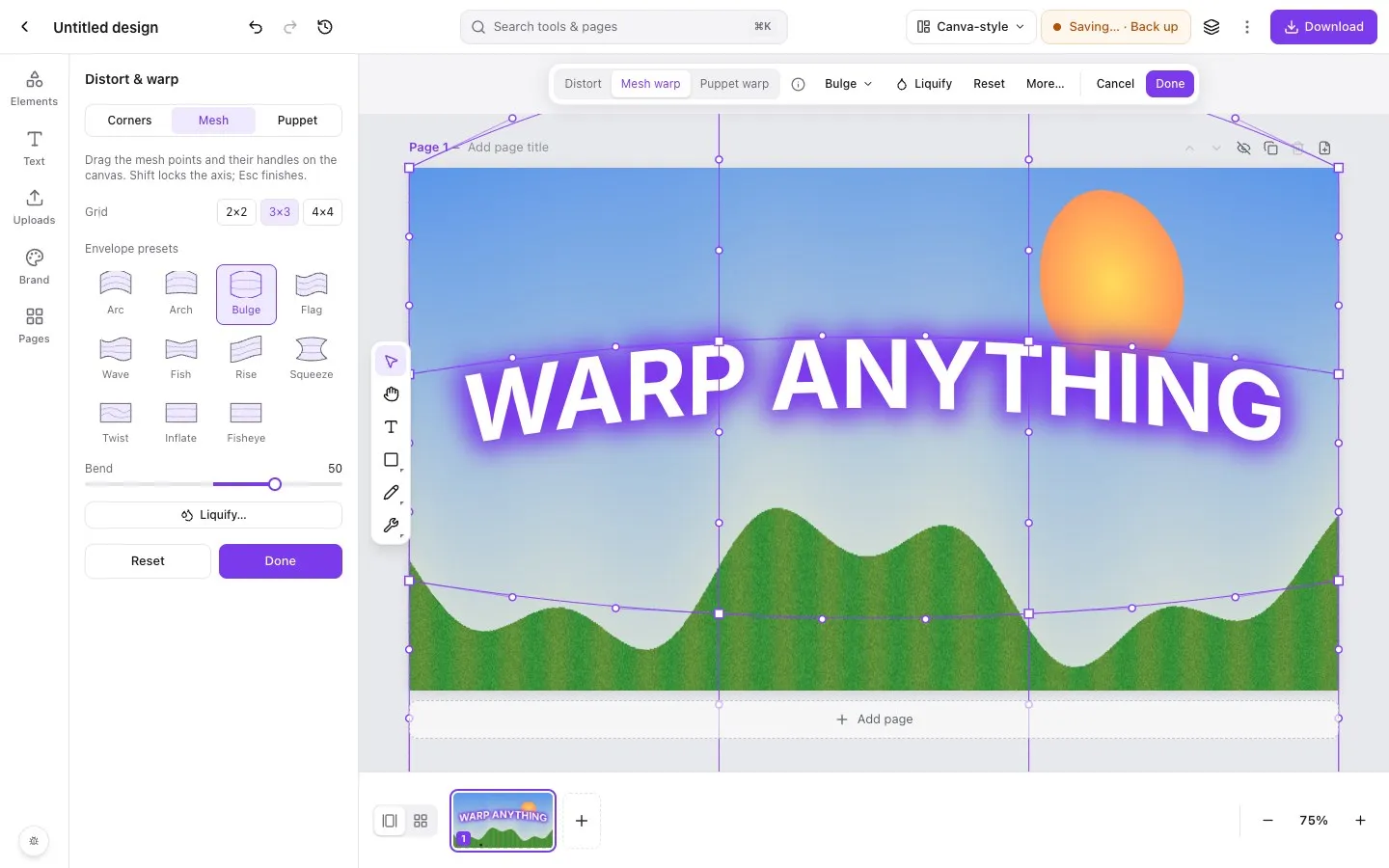
Step by step in Piclash
- 1Bring the design overExport your Canva design with the free Piclash importer and open it in Piclash. Its pages, text and photos stay editable. (Or just download the image from Canva and drop it in.)
- 2Select the image and open Distort & warpClick the photo, then … → Distort & warp, or Pro tools (Ctrl+K or Cmd+K) → Mesh.
- 3Choose how to warpUse an envelope preset (Arc, Bulge, Flag, Wave, Twist and more) with the Bend slider, drag the mesh grid by hand, move the Corners for perspective, or switch to Puppet to pin and bend.
- 4Click Done and downloadThe warp stays editable. Download a PNG, JPG or PDF, or an editable PowerPoint file that you can bring back into Canva.
You’ve laid out a design in Canva and now you want the photo to curve with the page, a logo to wrap around a mockup, or the whole thing to bulge out at the viewer. Canva’s toolbar has crop, flip and transparency, but no warp. Here’s what you can do.
Option 1: Canva’s apps (quick effects)
Canva’s Apps panel, on the left of the editor, has add-ons from other developers that distort images. Search the panel for “warp” or “distort” and you’ll find options such as:
- a warp brush that pushes and stretches parts of an image,
- a liquify app for melting and swirling effects,
- perspective apps that move an image’s corners.
They render the effect as a new image. That’s fine for a one-off, but you can’t go back and adjust the warp, and most offer a brush or corners rather than a grid. App availability changes, so check what’s in the panel today.
Option 2: Piclash (mesh, envelope and puppet warp)
For precise, editable warps, bring the design into Piclash. It’s free and it runs in your browser. The importer keeps your Canva layers intact, then you get:
- Envelope presets: arc, arch, bulge, flag, wave, fish, rise, squeeze, twist, inflate and fisheye, each with a Bend slider.
- Mesh warp: a 2×2, 3×3 or 4×4 grid. Drag any point or handle.
- Corners: perspective distort, for fitting an image to a sign, screen or box.
- Puppet warp: pin and bend parts of an image.
- Liquify: push, twirl, pinch and bloat.
All of them are non-destructive. The original photo is kept and the warp can be changed or removed at any time.
Getting it back into Canva
Download the finished image from Piclash as a PNG (with transparency if you need it) and upload it to Canva. To move the whole design, export an editable PowerPoint file from Piclash; Canva can import PowerPoint files.
Questions
Does Canva have a warp tool?
Not built into the editor, as of October 2026. Canva's Apps panel has add-ons that distort images, such as a warp brush, a liquify app and perspective apps. They're handy for quick effects but don't offer an editable mesh or envelope warp.
Can I warp text in Canva?
Canva's text effects include Curve, which bends a line of text along an arc. Wave, flag, bulge and other shapes need an app or another editor. See how to warp text in Canva.
Will I lose my Canva layers if I warp in Piclash?
No. The importer keeps the pages, text and photos as separate, editable layers, and only the element you warp changes.
Is it free?
Yes. Piclash and its importer are free, with no watermark and no account.
Try it on your own design
Free, nothing to install, and your work stays on your device.
Related
- Warp an image online, freeMesh warp, envelope presets (arc, bulge, flag, wave…) and puppet warp on photos, shapes and text.
- How to warp text in CanvaCanva's Curve effect for arcs, and how to get wave, flag, bulge and mesh warps on editable text.
- Can you liquify a photo in Canva?What Canva's apps offer, and how to liquify a Canva design's photos with Photoshop-style brushes.
- Bring your Canva designs into Piclash, still editablePages, text, shapes and your photos come across as editable layers, not a flat picture.