 Piclash
How to warp text in Canva
Canva's Curve effect bends text along an arc. For wave, flag, bulge or custom warps that stay editable, here's how to do it free, starting from your Canva design.
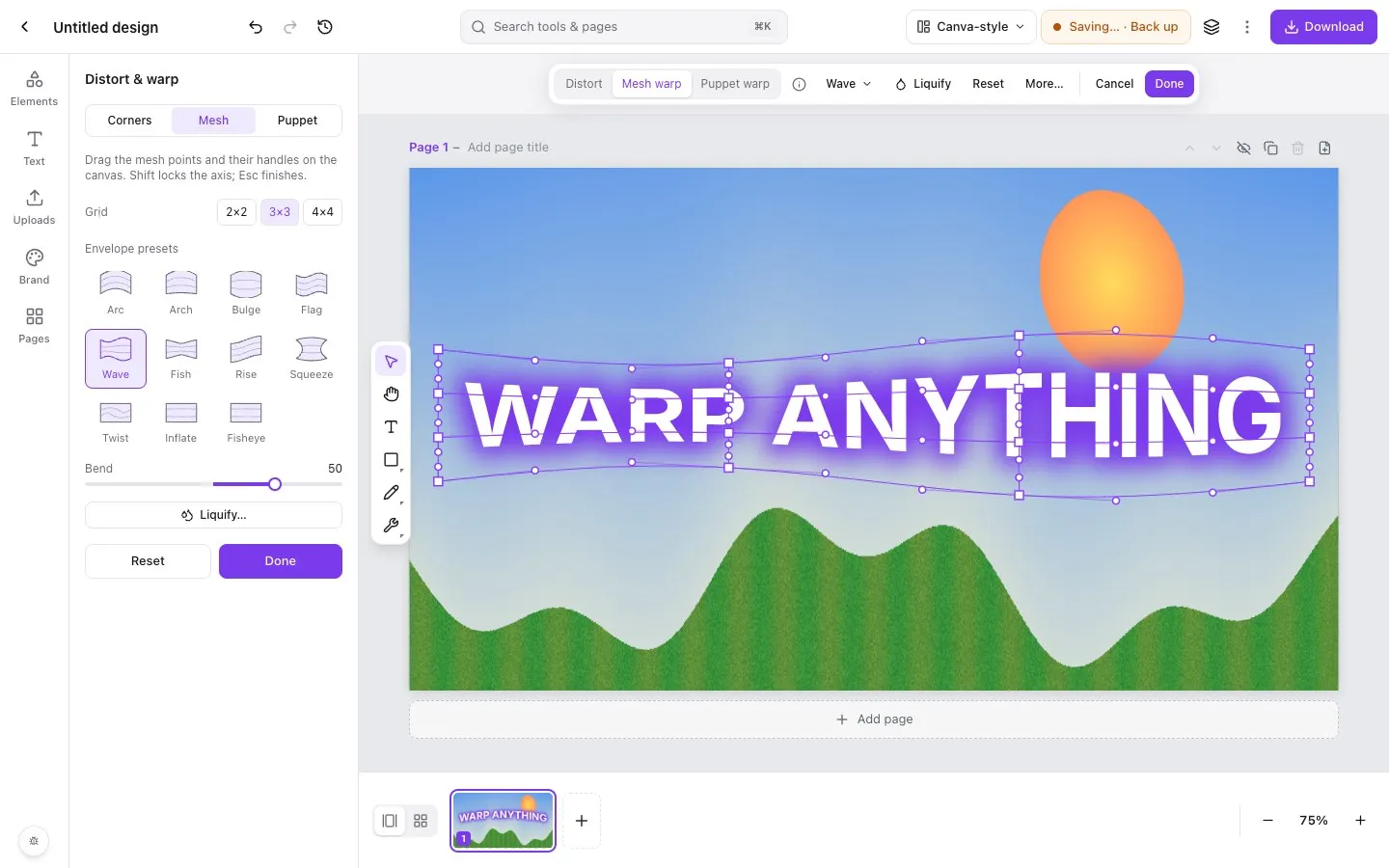
Step by step in Piclash
- 1Open your design in PiclashImport your Canva design with the free importer (the text stays editable), or start a new design and add a heading.
- 2Select the text and open EffectsClick the text, then Effects on the toolbar. Turn on Curve for a simple arc, as in Canva.
- 3Warp itFor other shapes, choose Warp text: arc, flag, mesh. Pick Wave, Flag, Bulge, Arch, Fish, Rise, Twist or another preset and set the Bend, or drag the mesh by hand.
- 4Style and finishAdd a glow, outline or shadow in the same panel. The text stays editable: double-click to change the words and the warp follows.
Canva makes simple curved text easy, and for a lot of designs that’s all you need. When you want text that waves, flies like a flag or bulges, you need a warp.
Curved text in Canva
- Select the text box.
- Click Effects on the top toolbar.
- Under Shape, choose Curve.
- Drag the Curve slider. Positive values arch upwards, negative values dip down, and the far ends wrap the text into a circle.
The letters stay upright along the arc, which suits badges, round logos and stickers.
Wave, flag, bulge and other warps
Canva’s text effects stop at curves. You’ll find third-party apps in Canva’s Apps panel that generate warped text, but they typically return a picture of the text. You can’t fix a typo or change the font afterwards without starting again.
Piclash has text warps built in, and the text stays live:
- Envelope presets: arc, arch, bulge, flag, wave, fish, rise, squeeze, twist, inflate, fisheye.
- Mesh warp: drag the grid for custom shapes.
- Curve, the same as Canva’s, when that’s all you need.
Glow, outline and shadow follow the warp exactly, which is how the headline in the screenshot above was made.
Moving between the two
Import the Canva design into Piclash to warp its existing text. Afterwards, download a transparent PNG of the text to place back in Canva, or export the whole design as an editable PowerPoint file.
Questions
How do I curve text in Canva?
Select the text, click Effects on the toolbar and choose Curve. Drag the Curve slider to bend it up or down; at the extremes it forms a circle.
Can Canva do wave or flag text?
Not with the built-in effects, as of October 2026. Some apps in Canva's Apps panel add text warps, but the result is usually an image, so you can't edit the words afterwards.
Will my warped text stay sharp?
In Piclash, yes. It's still real text, drawn crisply at any size, including PDF and SVG exports.
Try it on your own design
Free, nothing to install, and your work stays on your device.
Related
- Warp and curve text online, freeCurve text, or warp it with arc, wave, flag, bulge and mesh, and it stays editable.
- How to warp an image in CanvaWhat Canva can do with apps, and how to get a real mesh, envelope or puppet warp on a Canva design.
- Make YouTube thumbnails that stand out, free1280×720 canvas, glowing warped text, one-click cut-outs, and a PNG with no watermark.
- Bring your Canva designs into Piclash, still editablePages, text, shapes and your photos come across as editable layers, not a flat picture.