 Piclash
Curves, levels and HSL online, free
Adjust photos with real curves, levels, HSL and colour grading in your browser, as adjustment layers you can change later. Free, no sign-up, works on Canva designs.
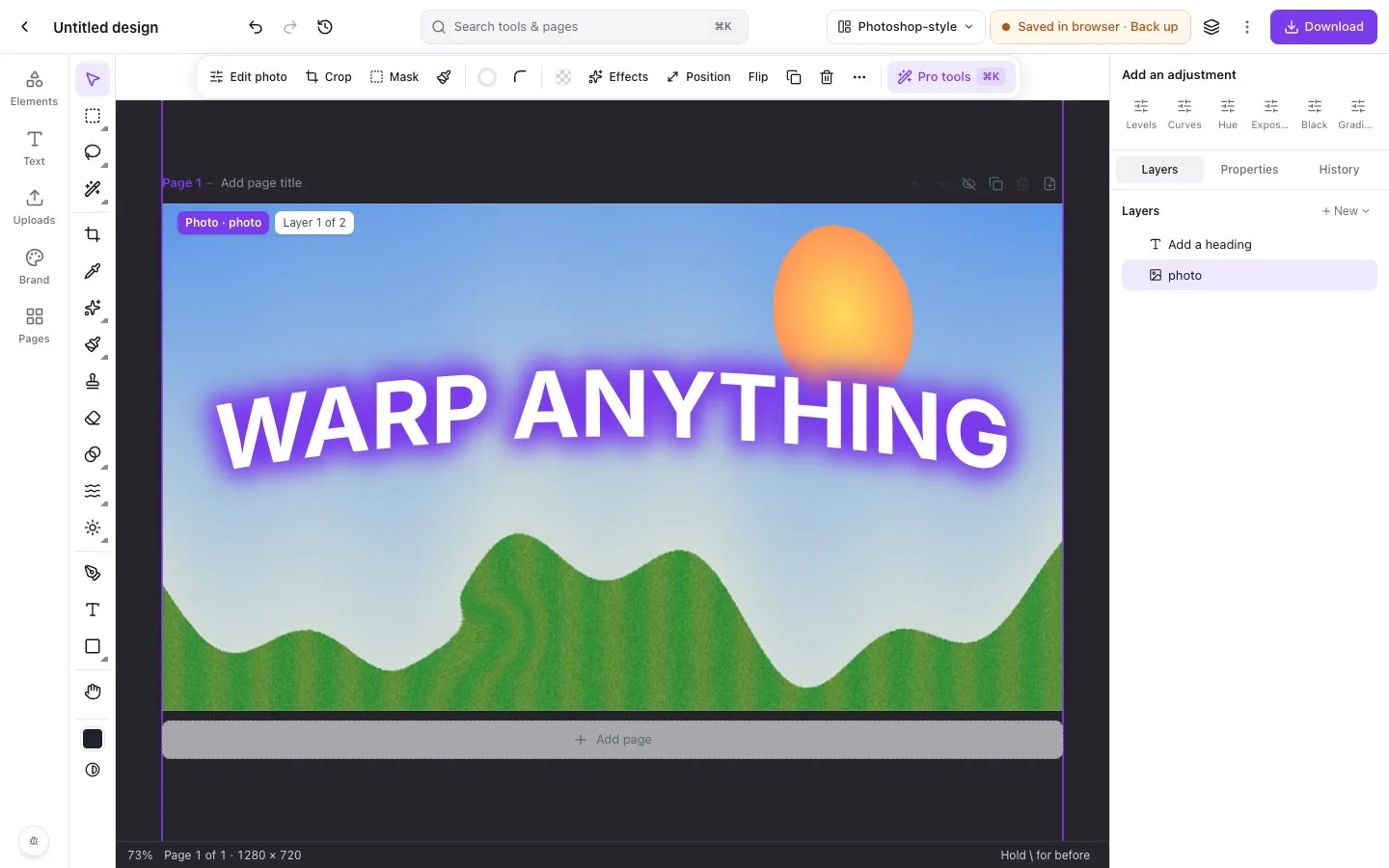
Step by step in Piclash
- 1Add your photoOpen Piclash and drop the photo onto the page, or add it from Uploads.
- 2Open Curves or LevelsSelect the photo and open Pro tools (Ctrl+K or Cmd+K): choose Curves, Levels or HSL. In the Photoshop-style workspace, use Add an adjustment in the right dock.
- 3AdjustDrag points on the curve (per channel or RGB), set the black, mid and white points in Levels against the histogram, or shift hue, saturation and lightness one colour at a time.
- 4Keep it editableAdjustments stay editable. Reopen them any time, or use an adjustment layer to affect everything below it, or only a selection.
Sliders get a photo close. Curves and levels get it right. They’re the colour-correction tools photographers rely on, and Piclash has them, with a histogram, in the browser.
What’s included
- Curves: RGB and per-channel tone curves with as many points as you need.
- Levels: black point, white point and gamma, with a live histogram.
- HSL: hue, saturation and lightness for each colour range. Make the sky bluer without touching skin tones.
- LUT looks: apply a colour grade.
- Detail: sharpen, reduce noise and add clarity.
- Quick adjust: brightness, contrast, exposure, saturation, temperature and more for fast fixes, plus a row of filters.
Adjustment layers
Add any adjustment as its own layer and it affects everything beneath it. Hide it to compare, lower its opacity to soften it, or mask it to one area. Hold </kbd> at any time to see the photo without its edits.
Questions
What's the difference between curves and the brightness slider?
Brightness lifts everything equally. Curves let you brighten shadows without blowing out highlights, add contrast to the midtones only, or fix a colour cast in one channel. That's why professionals reach for them first.
Can I adjust just part of a photo?
Yes. Make a selection (lasso, magic wand or select subject), then choose Adjust inside from the selection bar. It adds an adjustment layer masked to that area.
Does Canva have curves or levels?
Canva's Adjust panel has sliders such as brightness, contrast, highlights and shadows, but no curves or levels. See our guide to curves and levels for Canva designs.
Try it on your own design
Free, nothing to install, and your work stays on your device.
Related
- Can you use curves and levels in Canva?Canva has adjustment sliders, but no curves or levels. How to get them for your Canva photos.
- A free online photo editor with layers, masks and blend modesLayers, masks, adjustment layers, blend modes and layer styles, in a browser tab.
- Prefer Photoshop's layout? Switch to it.Tool column, options bar, Layers dock and Photoshop's keyboard shortcuts, one click away.
- Remove unwanted objects from a photo, freeBrush over what you don't want and it's filled in from the surroundings. Heal, patch and clone too.